
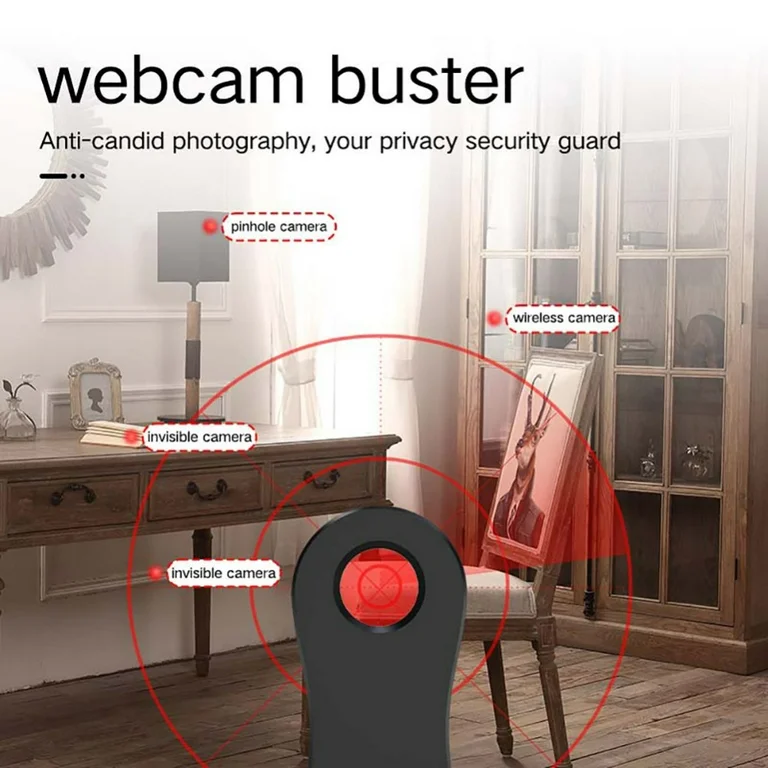
Turn Your iPhone into a Pinhole Camera Detector
The Nightmare Scenario While hotel guests lock their doors to enjoy what they believe is total privacy,…
The Nightmare Scenario
While hotel guests lock their doors to enjoy what they believe is total privacy, they may unknowingly be becoming the main characters in an illicit pornographic movie.
Recent Security Alert
Why this matters now: There have been alarming reports emerging from mainland China regarding severe privacy violations in hotels. Investigations revealed that pinhole cameras were secretly installed in rooms to livestream guests’ private moments. This footage was reportedly being broadcast to thousands of “VIP” members who paid a monthly subscription fee of around HKD 500. Given these risks, knowing how to sweep a room using your smartphone is more important than ever.
How to Turn Your iPhone into a Pinhole Camera Detector
Turning your iPhone into a “Pinhole Camera Detector” is feasible, but it requires understanding the principles and limitations. There is no single app that can magically scan and identify every hidden camera, but you can utilize the iPhone’s built-in hardware (Flashlight, Camera, Wi-Fi module) to assist in detection.
Here are several specific methods and steps to use your iPhone as a detector:
Method 1: Using the “Flashlight” and “Camera” to Detect Reflections
This is the most common method and requires no extra apps. The lens of a hidden camera is usually made of glass, which creates a specific reflection (often a small blue or purple dot) when hit by strong light.
Steps:
- Darken the room: Close curtains and turn off lights to make the room as pitch-black as possible.
- Turn on the iPhone Flashlight: Set the brightness to the maximum level.
- Open the Camera App: While you can look with your naked eye, looking through the phone screen often makes it easier to spot tiny reflections.
- Scan slowly: Holding the phone, slowly scan the flashlight beam over suspicious areas (e.g., smoke detectors, power outlets, TV bezels, paintings, eyes of stuffed animals).
- Look for glints: Look for abnormal, tiny points of light on your screen. If you see a bright dot in a place that shouldn’t be glowing, it might be a lens.
Method 2: Using “Infrared Detection” for Night Vision Cameras
Many pinhole cameras are equipped with Infrared (IR) LEDs to record in the dark. The human eye cannot see infrared light, but smartphone camera sensors can often detect it (appearing as a purple or white light).
Steps:
- Test your phone:
- Pick up a TV remote control.
- Open your iPhone’s Front Camera (Selfie Camera). Note: Many rear main cameras have IR filters and may not see it, but front cameras usually do.
- Point the remote at the camera and press a button.
- If you see a flashing purple or white light on the screen, your phone can detect infrared.
- Scan the room:
- Turn off all lights in the room (total darkness).
- Open the Camera app (using the lens you just tested).
- Pan around the room through the screen, looking for any steady or flashing purple/white dots.
Method 3: Using Wi-Fi Scanning Apps to Detect Networked Devices
Many modern hidden cameras transmit video via Wi-Fi. You can use network scanning tools to see if any suspicious devices are connected to the same Wi-Fi network.
Recommended Tool:
- Fing (Network scanner available on the App Store)
Steps:
- Connect to Wi-Fi: Ensure your iPhone is connected to the room’s Wi-Fi (e.g., the hotel Wi-Fi).
- Open Fing and Scan: Tap “Scan for devices.”
- Analyze the list: Look through the list of connected devices.
- Look for names containing “IP Camera”, “Cam”, or random strings of characters where the manufacturer is unknown or listed as a camera brand.
- Watch for manufacturer names like “Nest”, “Arlo”, or “Wyze”, though generic cheap chips are also common.
- Limitation: If the camera uses a separate SIM card (4G/5G) or is not connected to the Wi-Fi you are using, this method will not work.
Method 4: Using the LiDAR Scanner (Pro Models Only)
If you have an iPhone 12 Pro, 13 Pro, 14 Pro, or 15 Pro series (or iPad Pro), your phone is equipped with a LiDAR scanner. LiDAR emits laser pulses to measure distance.
While primarily for AR, some developers have made apps that use LiDAR to detect abnormal reflections or visualize the room in the dark.
Steps:
- Download a LiDAR-supported night vision or detector app (e.g., apps like Night Vision or specific Hidden Camera Detector apps).
- Open the app and scan the room.
- LiDAR can help outline objects in the dark and sometimes reveal anomalies inside objects, though it is not as effective as a professional thermal camera.
Method 5: Using the Magnetometer (Compass) to Detect Magnetic Fields
The iPhone has a built-in magnetometer (used for the Compass app). Cameras typically contain magnetic components (like speakers or lens coils).
Steps:
- Download a metal detector app (Search Metal Detector in the App Store).
- Move the phone close to suspicious objects (e.g., smoke detectors, alarm clocks).
- If the reading spikes suddenly, it indicates metal or magnetic components inside.
- Note: This is prone to false positives because many electronics naturally contain metal. Use this only as a secondary confirmation.
Priority Checklist (Where to Look)
When entering a new environment (like a hotel, Airbnb, or changing room), specifically check these high-risk areas:
- Smoke Detectors (The most common spot, especially if located directly above the bed).
- Power Outlets (Check for unusual holes).
- TVs and Set-top Boxes (Especially the infrared receiver area on the front).
- Paintings and Hooks (Check for tiny lens holes).
- Alarm Clocks (Check behind the display screen).
- Bathroom Mirrors (Check if it is a two-way mirror: Place your fingernail against the glass. If there is no gapbetween your nail and its reflection, it might be a two-way mirror).
- Wi-Fi Routers.
Summary
The iPhone can be a powerful aid, but it cannot guarantee 100% detection. The most effective approach is to combine multiple methods:
- Scan Wi-Fi with Fing.
- Turn off lights and search for reflections with the Flashlight + Naked Eye.
- Search for infrared lights using the Front Camera.
- Perform a physical inspection (touch and look closely) of suspicious objects.